

How to Upload and Manage Creative Assets in Leo
Leo’s asset library keeps all your creative — images, videos, documents, and competitor references — organized in one place. When you ask Leo to create a campaign, it can pull from your uploaded assets instead of starting from scratch. This guide covers how to upload, organize, and use your assets.
How to Upload Assets
There are two ways to upload assets in Leo.
From the Chat Panel
Click the + button in the chat input. You’ll see two options:
- Add Assets — select from assets already in your library
- Upload from computer — upload new files directly
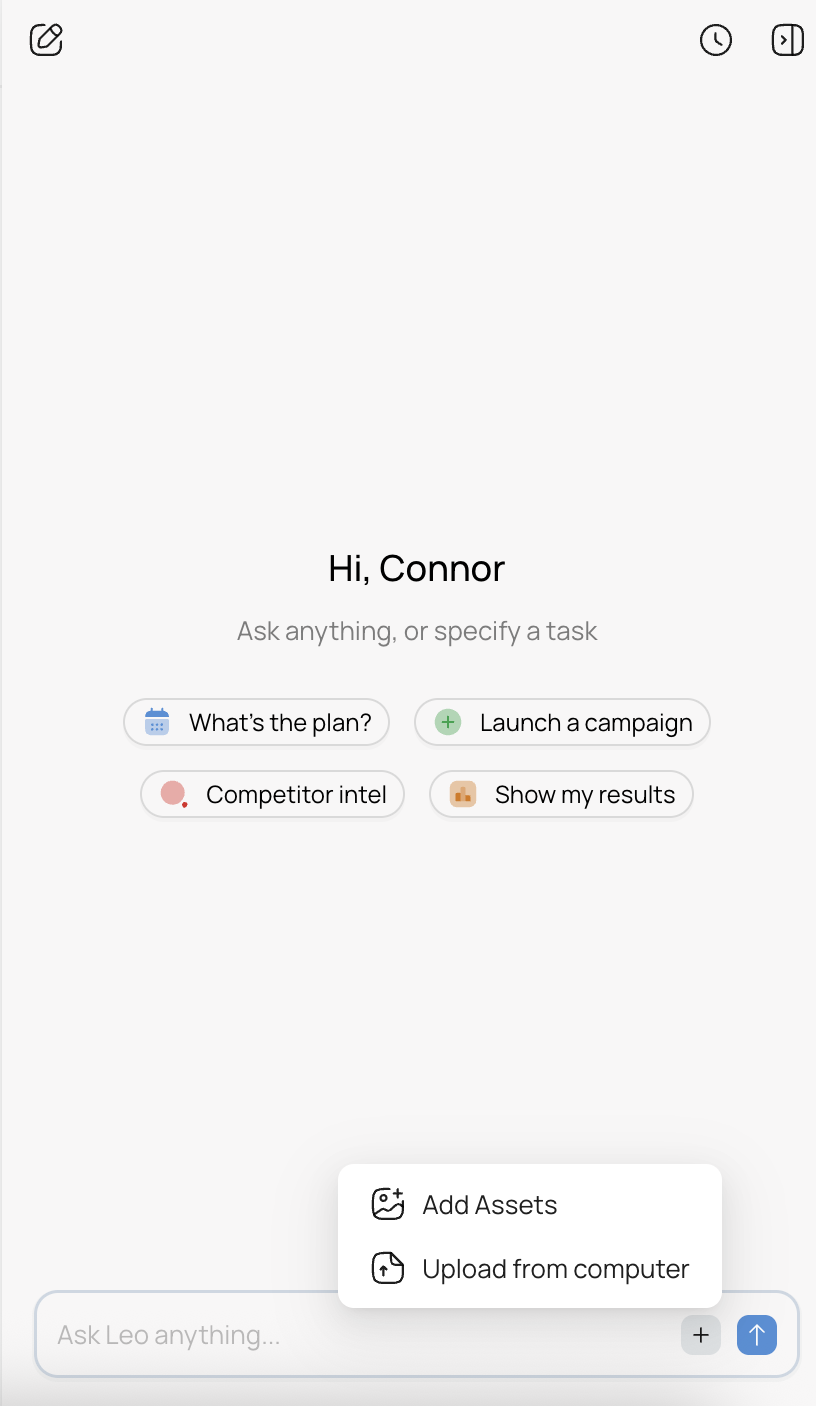
This is the fastest way to upload when you’re in the middle of a conversation with Leo. Upload an image or video and it’s immediately available for Leo to use in campaign creation.
From the Sidebar
Click Assets in the left sidebar to expand your asset library. From here you can browse everything you’ve uploaded and add new files.
Asset Categories
Leo organizes your assets into categories so they’re easy to find:
- Polished Ads — finished ad creatives ready to run
- Raw Assets — source images, videos, and files that can be used to build ads
- Resource Documents — brand guidelines, briefs, and reference materials
- Competitor Ads — ads from competitors you’ve saved for reference
- Generated — assets that Leo has created for you (AI-generated creatives)
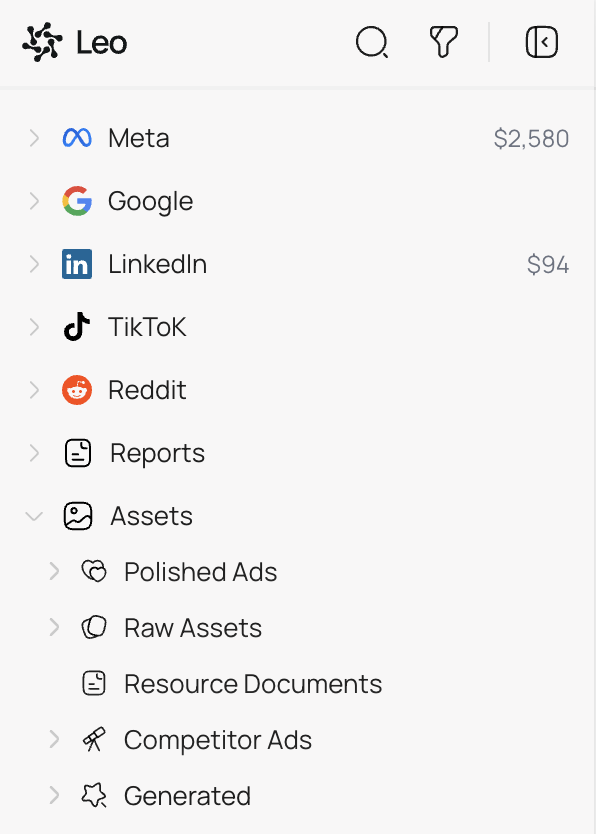
Each category is expandable — click the arrow to see the individual assets inside.
Using Assets in Campaigns
When you ask Leo to create a campaign, you can reference your assets:
- Attach directly in chat — click + and select Add Assets to attach specific images or videos to your message
- Mention them by description — tell Leo “use the product photos I uploaded” or “use the video from our spring campaign” and it will find the right assets
- Let Leo choose — if you don’t specify, Leo will look through your asset library and pick what fits best for the campaign you’re creating
Tips
Upload your best-performing creatives. Even if they’re already running on a platform, having them in Leo’s library means Leo can reference them when creating new variations or campaigns on other platforms.
Save competitor ads. When you see a competitor ad you want to reference, save it to the Competitor Ads category. You can then tell Leo “create something similar to the competitor ad I saved” and it will use it as creative inspiration.
Keep raw assets organized. Upload logos, product photos, and brand assets to Raw Assets. Leo can combine these into finished ad creatives when you ask it to generate new ads.
Check the Generated category. When Leo creates ad creatives for you, they’re saved here automatically. You can review them, reuse them in future campaigns, or ask Leo to create variations.